

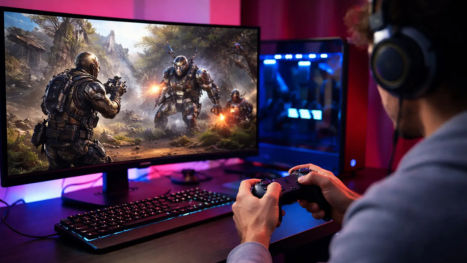
This guide explains how an Android emulator improves controls and performance on a PC.
Why Mobile Games Feel Worse on a Phone Than They Should
The problem is often the hardware and the input method, not the game itself.
A phone is a limited device. After a few ranked matches, the SoC throttles, touch sampling stays high while frame time becomes uneven, and your aim starts to feel sticky. On-screen joysticks also force two thumbs to do the work of a keyboard, a mouse, and sometimes a gamepad. That is why competitive players hunt for lower input lag, better keyboard mapping, and a way to play Android games on PC without fighting the touch layer.
PC hardware flips that equation. So, there you get:
- A larger display and higher resolution, so skill icons and minimaps stop competing with your thumbs
- Keyboard and mouse controls that map one action to one physical key
- Better cooling for more stable FPS
- Extra RAM and a discrete GPU, which an emulator can actually use
The missing piece is software that translates Android touch into PC input without adding lag.
That is where a gaming-focused Android emulator matters more than a generic run apps on Windows tool.
The Fastest Way PC Players Upgrade Mobile Games
Screen mirroring keeps the game on the phone and only sends video to the monitor. Official Play Games on PC is cleaner for a limited catalog. Both have a place. If you want the widest library, custom keymapping, multi-instance, and per-game performance sliders, a dedicated emulator is still the most complete option.
LDPlayer is built for that job. It is a lightweight Android emulator designed around high FPS mobile games, WASD movement, mouse aim, and low system overhead. Presets already exist for titles such as Call of Duty Mobile, Free Fire, PUBG Mobile-style shooters, Mobile Legends, and many gacha or strategy games. You are not starting from a blank HUD every time.
If you want the full control stack rather than a locked official subset, start with a proper Android emulator instead of hoping the phone will suddenly feel like a desktop.
Set Up LDPlayer So Controls and Performance Have Room to Work
To get your best setups from the emulator, you have to install from the official site, preferably on an SSD. Before you chase sensitivity sliders, fix the foundation.
Enable Virtualization Technology (VT)
Intel VT-x or AMD-V can dramatically raise emulator speed. Check Task Manager → Performance → CPU. If virtualization is off, enter BIOS/UEFI (usually Del, F2, or F10) and enable it. LDPlayer’s own guidance treats this as the single biggest free performance win.
Give the Instance Realistic Resources
More cores and RAM are not automatically better. Over-allocating starves Windows and makes frame pacing worse.
Your PC CPU cores for RAM for the Notes RAM the instance
8 GB 2-4 2048-3072 MB Close browsers and launchers 16 GB 4 4096 MB Sweet spot for most 3D games 32 GB+ 4-6 4096-6144 MB Use extra RAM for multi-instance, not one bloated window
Pick a Sensible Resolution and FPS Cap
1080p at a locked 60 or 90 FPS usually feels better than 4K with stutter. Match the in-game FPS option to the emulator cap. If the game of ers High FPS or 120 FPS mode, enable it only after the emulator itself is stable.
Force the Dedicated GPU
On laptops, Windows may park the emulator on the iGPU. In the NVIDIA Control Panel or AMD Software, set LDPlayer / the emulator executable to High Performance. That single change often removes hitching that people blame on bad keymapping.
Keep Windows out of the Way
Close overlay-heavy launchers, set the emulator to High performance in Windows power options, and install games on SSD. Background Discord, Chrome, and cloud-sync clients steal the same cores the emulator needs.
How Keyboard Mapping Turns Touch Games Into PC Games
This is the heart of better controls. Keymapping does not add buttons. It tells the emulator which screen coordinates to tap, hold, or drag when you press a key.
In LDPlayer, launch the game first, then open Keyboard mapping from the right toolbar or press F12. Default schemes exist for popular titles. You can try those before you rebuild the HUD from scratch.
The tools you will actually use:
- Simple Touch: one key equals one tap (fire, jump, skill, interact)
- WASD / Move Control: a virtual joystick under the movement pad
- Shoot / ADS mode: mouse look with left-click fire and right-click aim
- Repeat Touch: rapid fire or fast skill tapping when the game allows it
- Swipe / skil joystick: directional ultimates in MOBAs
- Gamepad tab: physical controller buttons mapped to the same HUD points
Save the scheme with a name. You can keep one layout for ranked and another for casual, then switch without rebuilding.
And here is a practical order that avoids messy layouts: 1. Lock the in-game HUD first. If the fire button moves later, every mapping breaks. 2. Place WASD on the movement stick. 3. Bind the actions you press every second: fire, aim, jump, reload. 4. Put utilities on nearby keys: grenade, skill 1-4, backpack, map. 5. Only then add macros, repeat taps, or extra mouse buttons. 6. Hide on-screen mapping hints once you have muscle memory.
A Control Layout that Actual y Feels like a PC Shooter
These bindings are a starting point for Free Fire, Call of Duty Mobile, Blood Strike, Arena Breakout, and similar games. Adjust after one deathmatch, not after one menu screen.
Action Suggested binding
Move W A S D Aim / camera Mouse movement (Shoot Mode on) Fire Left mouse button ADS / scope Right mouse button Jump Space Crouch C Prone Z or X Reload R Interact / loot F Weapons 1 2 3 4 Inventory Tab Map M Sprint / slow Shift (or a scaled WASD macro) walk For MOBAs such as Mobile Legends or Wild Rift, keep movement on WASD or right-click move, map basic attack to A or left click, and park skills on Q W E R plus D/F for the extra buttons.
Strategy and idle games barely need a custom map; the win there is resolution, multi-instance, and stable FPS.
Mouse Sensitivity, Shoot Mode, and Why Aim Feels Off
If the camera spins like a ceiling fan, do not only touch in-game sensitivity. Open the mapping editor, select the shoot/aim control, and lower X/Y sensitivity there first. Then match ADS and scope sliders inside the game.
Shoot Mode (often toggled with F1 or Ctrl, depending on the scheme) locks the cursor to the game window so mouse look works like a PC FPS. If the mouse escapes to the desktop, that lock is off. If aim accelerates only when you flick, disable Windows Enhance pointer precision and use a raw mouse DPI around 800-1200 while you find a baseline.
There are simple steps that can save ranked games:
- Recreate mappings after you change emulator resolution or DPI. Coordinates shift.
- Do not stack a huge fire button over the movement stick. You will hip-fire while strafing.
- Macros that auto-headshot or auto-skill can violate a game’s rules. Use repeat-tap for quality-of-life, not for bypassing skill.
Gamepad Support When You Want Console Feel
Not every mobile game wants a mouse. Racing games, action adventures, and some RPGs feel better on a controller.
Connect an Xbox or PlayStation pad before you launch the instance. In the mapper, open the Gamepad tab and assign buttons the same way you assign keys. If the title has native controller support, prefer that path and native input is usually lower latency than simulated taps. If it does not, mapped input still works; you are just converting a button press into a touch event.
Wired USB beats Bluetooth when you are chasing input lag. Disable extra device polling in Windows if the stick drifts.
Performance Tuning After Controls Feel Right
Better controls mean nothing if the frame time spikes. Treat performance as a second control setting.
- Graphics API and renderer: If a game stutters in one mode, switch between OpenGL and DirectX in the emulator settings. Some titles prefer one path on NVIDIA cards and the other on AMD.
- FPS lock versus uncapped frames: A stable 60 FPS with even frame pacing beats a graph that oscillates between 40 and 120. Cap at a value your GPU can hold, then raise it.
- Disk and instance type: High-end single-game play can use a normal virtual disk.
Heavy multi-instance setups often run cleaner with optimized disk mode and Eco Mode on idle windows so background accounts do not burn the CPU.
- Multi-instance, used with a purpose: LDPlayer’s multi-player tool is the reason many
PC players farm, reroll, or run an alt without a second phone. Clone a tuned instance instead of configuring five windows from zero. Align resolution and DPI before you use the synchronizer, or clicks will land on the wrong UI.
- Network: emulators do not invent ping. Use Ethernet if you can, close bandwidth-heavy apps, and keep the instance clock accurate so anti-cheat and login tokens do not fight you.
This is also where choosing the best Android emulator for raw frame rate matters. LDPlayer is routinely picked when the goal is higher FPS and lower overhead on the same hardware, especially on mid-range PCs that cannot donate 6 GB of RAM to a heavier client.
What Better Should Feel Like When You Are Done
After a proper session on PC you should notice three things at once. Movement is analog enough to peek corners without thumb slip. Shots go where the cursor is, not where your finger smudged the fire button. Frame rate holds through the noisy part of the fight instead of collapsing when the phone overheats.
That combination with keyboard mapping, mouse aim, stable FPS, and a gaming-first emulator is how PC players get better controls and performance from mobile games. You are not changing the design of the title. You are giving it input and thermals that a handheld was never built to provide.
Conclusion
Now you know how PC players are getting better performances with controls. Download LDPlayer, enable VT, load a default scheme, then spend fifteen minutes on sensitivity instead of another hour arguing with a touch joystick. The games were already good, and the PC setup is what finally lets them play like it.
Summary: Learn how PC players can get better controls and performance from mobile games with keyboard mapping, FPS tweaks, and a fast Android emulator.
