

There are certain PC peripherals that you don’t really appreciate until you’ve spent several hours using them.
An ergonomic keyboard is one of them.
For years, I’ve used conventional keyboards without really questioning the layout. Put the keyboard in front of me, put my hands roughly where they need to go, and get on with whatever I’m doing.
That changes when you start using something like the EPOMAKER Split70.
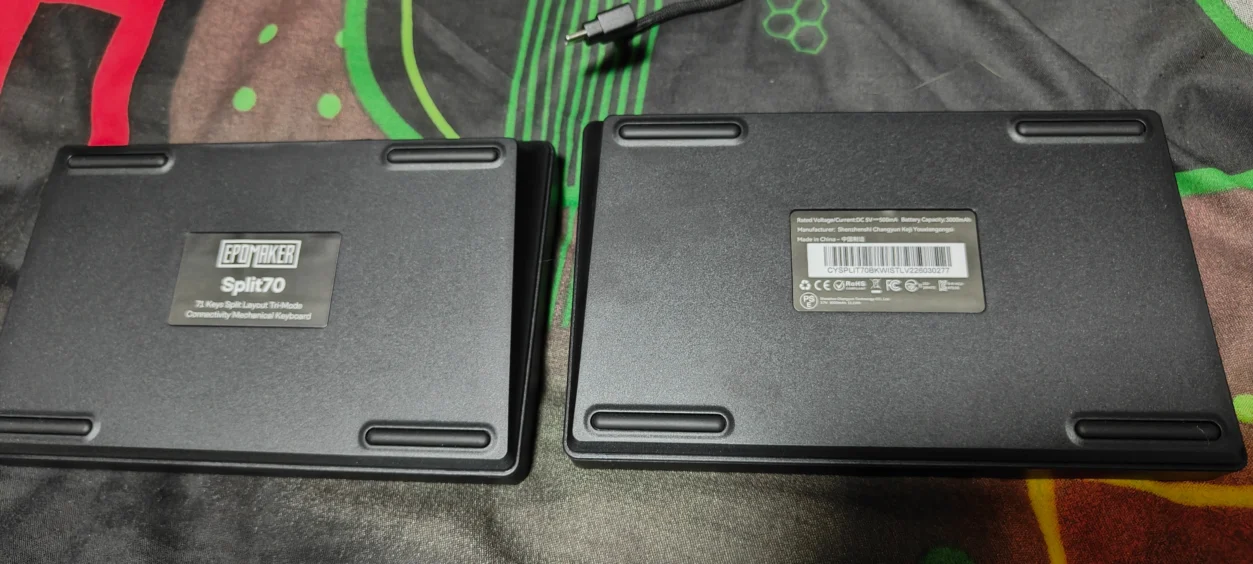
The Split70 takes the traditional keyboard and, quite literally, splits it in two. Rather than forcing both hands into a fixed position, the two halves can be positioned independently, allowing you to find a more natural position for your hands and arms.
That sounds like a small change.
It isn’t.
I’ve been using the Split70 for gaming, general work, typing and creating images in Photoshop, while also putting it through its gaming paces with The Blood of Dawnwalker, 007 First Light and Dragon’s Dogma 2 following its latest 3.2 update.
That gave me a pretty good idea of what this keyboard is actually like when you stop looking at specifications and start using it as your primary keyboard.
What Is the EPOMAKER Split70?
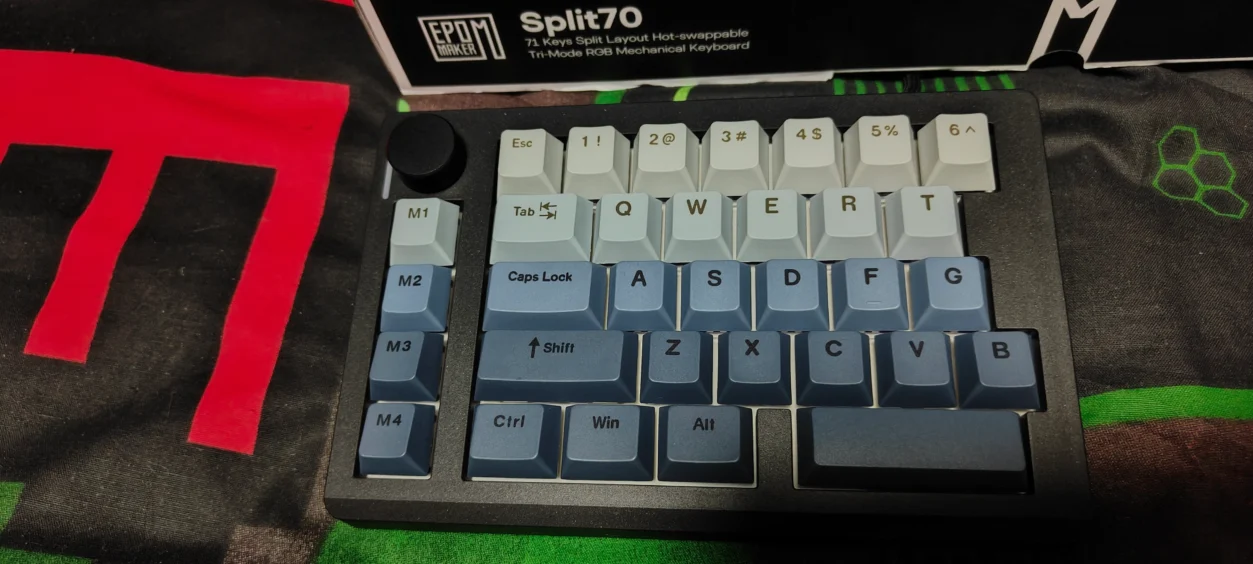
The EPOMAKER Split70 is a 70% ergonomic split mechanical keyboard with 71 keys and a dedicated rotary knob.
Unlike a conventional 70% keyboard, however, the Split70 isn’t one solid keyboard.
It consists of two separate halves that can be positioned independently.
This is the biggest difference between the Split70 and a conventional mechanical gaming keyboard, and it is also the feature that defines the entire experience.
EPOMAKER has combined the split design with a gasket-mounted structure, five layers of sound dampening, PBT Cherry-profile keycaps, hot-swappable switches, per-key RGB lighting and tri-mode connectivity.
There is also a 3000mAh battery, with EPOMAKER claiming up to 260 hours with the RGB lighting switched off.
For gaming, the keyboard supports 1000Hz polling over both wired and 2.4GHz wireless connections, with a claimed 3ms wired latency and 5ms latency over 2.4GHz.
So although the Split70 is very clearly designed with ergonomics and productivity in mind, EPOMAKER hasn’t forgotten that this is also a gaming keyboard.
EPOMAKER Split70 Design and Build Quality
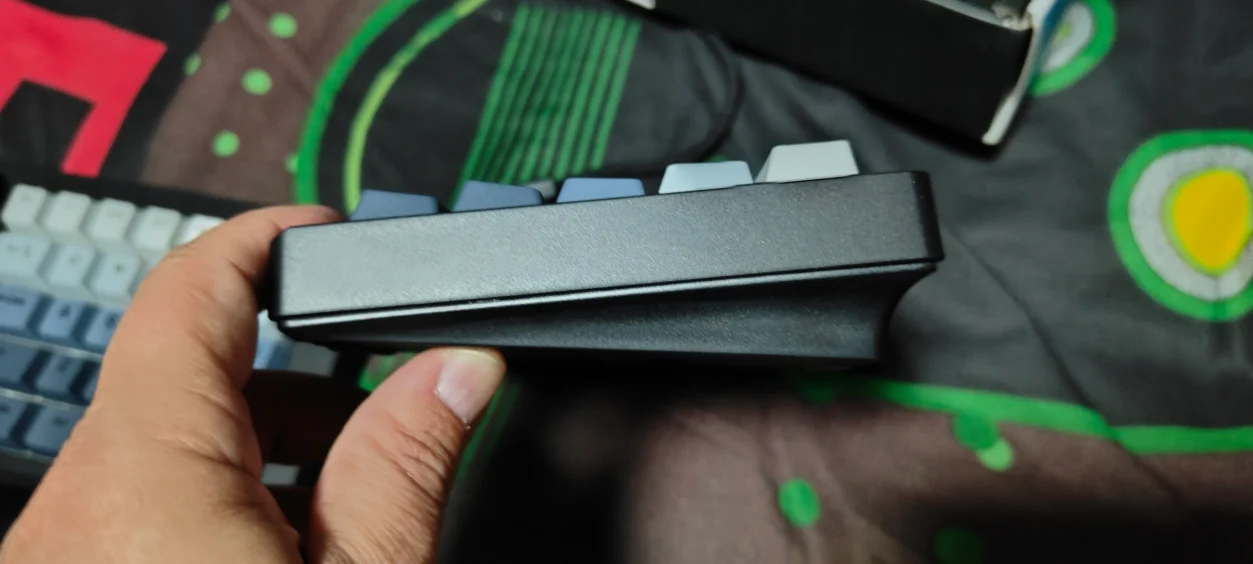
The Split70 immediately looks different from almost every conventional keyboard sitting on a gaming desk.
There is no long rectangular slab stretching across the entire width of the desk.
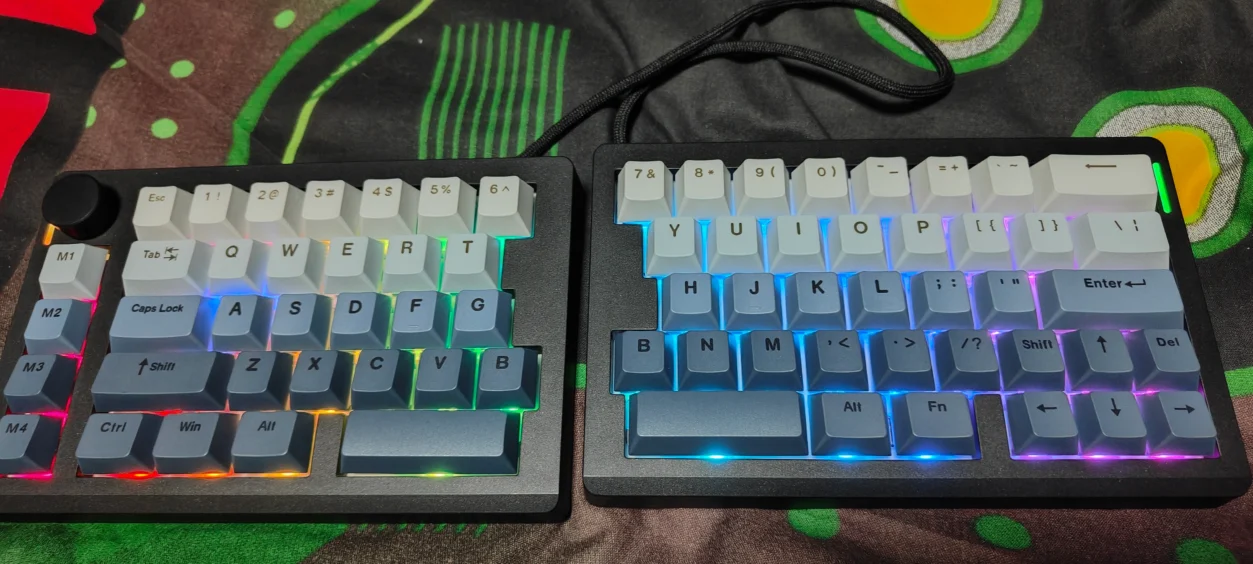
Instead, you’ve got two compact keyboard sections.
This gives you considerably more freedom over how you position your hands.
You can move the halves closer together, further apart or angle them depending on what feels comfortable.
And this isn’t just a gimmick.
Once you’ve spent some time experimenting with the positioning, you start to understand why split keyboards exist in the first place.
Rather than forcing your arms to angle inwards towards a conventional keyboard, the Split70 allows you to position each half more naturally.
For longer working sessions, this can make a surprising difference.
71 Keys and a Rotary Knob
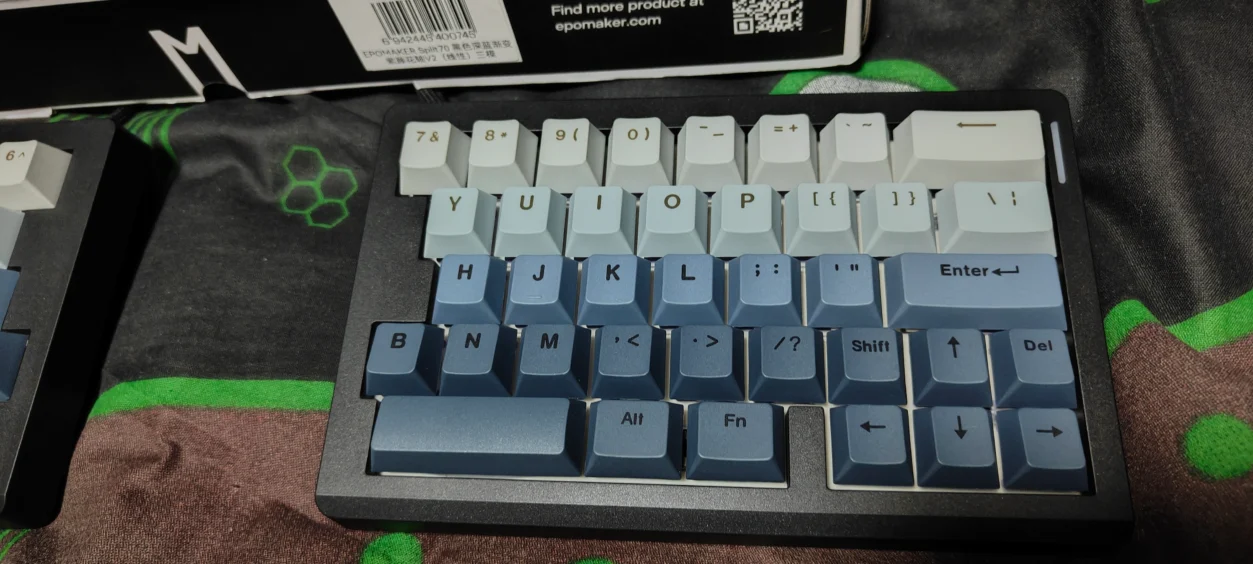
The Split70 uses a 70% layout with 71 keys, plus a rotary knob.
That gives it considerably more functionality than an ultra-compact 60% keyboard without taking up the enormous amount of desk space associated with a full-size keyboard.
The rotary knob is particularly useful during general desktop use.
Being able to reach over and adjust a setting without taking your hand away from the keyboard is one of those small quality-of-life features that you quickly get used to.
It also makes sense on a keyboard intended for productivity.
The Split Design: Does It Actually Make a Difference?
This is probably the most important question to answer in this review.
Yes, but you need to give yourself time to adapt.
When you first move from a conventional keyboard to the Split70, your brain has to recalibrate where everything is.
Your hands know where the keys should be, but the physical position of those keys has changed.
I found myself making the occasional mistake initially, particularly when reaching for keys that I had spent years finding automatically on a conventional keyboard.
But after spending more time with the Split70, that became considerably less of an issue.
The biggest benefit isn’t necessarily that you suddenly type faster.
It’s that you can position the keyboard around your body rather than positioning your body around the keyboard.
That distinction is important.
If you spend several hours a day at a PC, especially typing or editing content, that flexibility becomes much more meaningful.
EPOMAKER Split70 for Everyday Typing
This is where the Split70 really surprised me.
I spend a lot of time typing, writing content and generally working at a PC, so the keyboard wasn’t simply being tested for gaming.
It had to work as an everyday productivity keyboard.
And once I became accustomed to the split arrangement, I genuinely enjoyed using it.
The ability to move the two halves apart gives your arms more room, while the keyboard itself occupies less of the desk than a traditional full-size board.
It also means you can move your mouse closer to your body rather than having to reach around a large keyboard.
That’s something gamers will appreciate, but it is arguably even more useful when you’re working for several hours.
Typing Feel
The Split70 I tested comes equipped with EPOMAKER Wisteria Linear V2 switches.
These are factory-lubed linear switches with a 32.8±5gf trigger force, approximately 2mm of pre-travel and 3.6mm of total travel.
In use, they feel smooth and relatively light.
There isn’t a pronounced tactile bump getting in the way, so keystrokes feel consistent from one key to the next.
For typing, that makes the keyboard feel fast without requiring excessive force.
For gaming, it also means rapid repeated inputs don’t require much effort.
How Does the Split70 Sound?
EPOMAKER has clearly spent a lot of time working on the acoustics of the Split70.
The keyboard uses a five-layer sound-dampening system consisting of multiple materials designed to reduce hollow resonance and unwanted vibration.
There is also a gasket-mounted structure.
The result is a keyboard that sounds considerably more refined than you might expect given its price.
Rather than producing a loud, hollow plastic sound every time you hit a key, the Split70 has a deeper and more controlled character.
EPOMAKER describes the target sound as a creamy “thock”, and while descriptions of keyboard sounds can become ridiculous very quickly, I understand what they’re going for.
It is smoother and more controlled than a basic mechanical keyboard.
EPOMAKER Split70 for Gaming
A keyboard can be fantastic for typing and still be a terrible gaming keyboard.
Thankfully, that isn’t the case here.
The Split70 doesn’t use an ultra-high polling rate or magnetic Hall Effect switches, so competitive FPS players looking for every possible millisecond may want something more specialised.
For the games I played, however, the Split70 performed extremely well.

The Blood of Dawnwalker
The Blood of Dawnwalker was one of my main tests for the Split70.
An action RPG like this doesn’t require the same keyboard characteristics as a competitive shooter, but it does involve plenty of movement, combat and repeated key presses.
The split design worked surprisingly well.
Once I found a comfortable position for the two halves, my left hand naturally settled into the movement keys while my right hand remained on the mouse.
There was also plenty of space between the keyboard and mouse, something that becomes particularly noticeable if you normally use a wide full-size keyboard.
The linear Wisteria switches were also a good fit.
Movement felt light and responsive without requiring me to hammer the keys.

007 First Light
007 First Light provided another useful test because it mixes exploration, action and more traditional movement controls.
Again, the Split70 didn’t feel like a compromise.
The keyboard responded quickly to movement inputs, while the split design gave my left hand a comfortable position for longer sessions.
What I particularly liked was being able to angle the left section slightly rather than keeping both halves perfectly straight.
That is something you simply can’t do with a conventional keyboard.

Dragon’s Dogma 2 – Update 3.2
Dragon’s Dogma 2 was probably the most interesting game to test because Capcom’s latest 3.2 update has made substantial changes to the game, including performance improvements and gameplay adjustments.
It also gives the Split70 a good workout because Dragon’s Dogma 2 involves long exploration sessions, combat, inventory management and plenty of movement.
The keyboard performed exactly as I wanted it to.
There was no noticeable input delay when using the 2.4GHz wireless connection, and the linear switches made repeated movement and ability inputs feel natural.
More importantly, the ergonomic arrangement became more useful the longer I played.
Dragon’s Dogma 2 is the sort of game where you can easily lose several hours without noticing, and having the keyboard positioned naturally rather than forcing my wrists into a fixed angle made a genuine difference.
The Split70 doesn’t magically make Dragon’s Dogma 2 easier, but it does make spending several hours playing it more comfortable.
Using the Split70 With Photoshop
This was one of the tests I was particularly interested in.
A keyboard designed primarily around gaming doesn’t necessarily translate well to creative applications.
Photoshop is full of shortcuts, modifier keys and repeated commands, so keyboard layout and accessibility actually matter.
The Split70 worked well here.
Having the keyboard halves separated gave me more room to position my mouse and graphics work area, while the dedicated layout still provided the keys I needed for normal Photoshop shortcuts.
The rotary knob was also useful during general creative work.
Being able to reach for a physical control instead of constantly moving between keyboard and mouse is a small but welcome improvement.
This is where I think the Split70 becomes more than simply a gaming keyboard.
It is a keyboard that makes sense for people who spend their day doing several different things on the same PC.
Wireless Connectivity
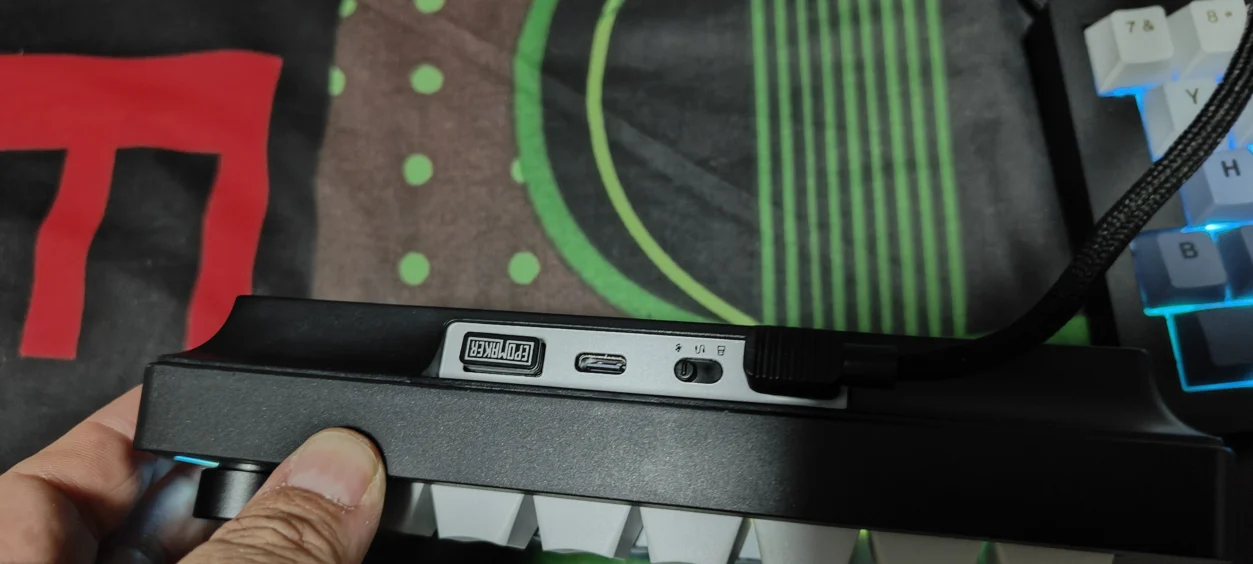
The Split70 supports three connection methods:
- 2.4GHz wireless
- Bluetooth
- USB-C wired
For gaming, I’d use 2.4GHz or wired.
For general productivity, Bluetooth is perfectly useful if you want to connect the keyboard to another device.
The ability to switch between connection types also makes the Split70 more versatile than a keyboard that is permanently tethered to one PC.
EPOMAKER Split70 Gaming Latency and Polling Rate
The Split70 supports 1000Hz polling when using USB-C wired or 2.4GHz wireless connectivity.
EPOMAKER lists latency at approximately 3ms in wired mode and 5ms using 2.4GHz wireless.
Bluetooth drops to a 125Hz polling rate with approximately 15ms latency.
For normal gaming, the 2.4GHz connection is easily fast enough.
Unless you’re playing highly competitive games where every possible millisecond matters, I don’t see the polling rate being a limitation.
For the RPGs and adventure games I tested, the keyboard felt responsive throughout.
3000mAh Battery Life
The Split70 includes a 3000mAh rechargeable battery.
EPOMAKER claims up to 260 hours with the RGB lighting switched off, while continuous use with the backlight enabled is rated at around 11 hours.
As always, battery life will depend on how you use the keyboard, but the capacity is reassuringly large.
If you’re using the Split70 primarily as a work keyboard and don’t need RGB running constantly, there is plenty of potential battery life here.
For gaming, I’d personally keep the RGB at a sensible brightness rather than running it at maximum all the time.
RGB Lighting
The Split70 uses south-facing per-key RGB LEDs.
The lighting looks good, particularly against the PBT keycaps, and there are plenty of effects available through the keyboard’s software.
Personally, I’m more interested in the functionality of the keyboard than RGB effects, but it’s still nice to have.
The south-facing arrangement is also beneficial for compatibility with Cherry-profile keycaps.
Hot-Swappable Switches
One of my favourite features of the Split70 is the hot-swappable PCB.
That means you aren’t permanently committed to the Wisteria V2 switches that come installed.
If you decide you want a heavier linear switch, a tactile switch or something quieter, you can replace the switches without soldering.
For keyboard enthusiasts, this is a major advantage.
It also means the Split70 can evolve with you.
You can start with the supplied switches and experiment later rather than having to buy an entirely new keyboard when you decide you want a different typing experience.
PBT Keycaps
The Split70 uses Cherry-profile PBT keycaps with dye-sublimated legends.
PBT is generally preferable to cheaper ABS keycaps for long-term use because it tends to resist the shiny, worn appearance that can develop on frequently used keys.
The Cherry profile also feels familiar if you’re coming from a conventional mechanical keyboard.
That helps with the learning curve because although the keyboard is split, the individual key shapes aren’t completely alien.
EPOMAKER Split70 Software
EPOMAKER provides browser-based configuration for the Split70 through its web hub.
This allows you to remap keys, configure macros and adjust lighting without needing to install a traditional desktop application.
I prefer this approach.
Keyboard software has a habit of becoming another background application that you forget exists until Windows decides to update it.
Being able to open the browser, make changes and get back to work is considerably cleaner.
What I Like About the EPOMAKER Split70
- Genuinely useful split ergonomic design
- Excellent typing comfort
- 71-key 70% layout keeps the footprint compact
- Five-layer sound dampening
- Gasket-mounted construction
- Smooth Wisteria V2 linear switches
- Hot-swappable PCB
- PBT Cherry-profile keycaps
- Tri-mode connectivity
- 3000mAh battery
- 1000Hz polling over wired and 2.4GHz
- Useful rotary knob
- Excellent for gaming and productivity
What Could Be Better?
The Split70 isn’t perfect.
The biggest issue is also the feature that makes it unique: the split layout.
There is a learning curve.
If you have spent years using conventional keyboards, you’ll need some time before your fingers automatically find everything.
I also think the lack of a traditional number pad will rule it out for some productivity users, although that’s obviously a consequence of the 70% format.
The battery life with RGB enabled is another area where expectations need to be realistic. The claimed 260-hour figure applies with the backlight off, while continuous RGB use is rated at around 11 hours.
And while 1000Hz is more than adequate for most games, competitive esports players may want a keyboard with a higher polling rate and features such as Hall Effect switches and rapid trigger.
That isn’t really what the Split70 is designed for, though.
Who Is the EPOMAKER Split70 For?
This is where I think EPOMAKER has got the Split70 right.
It isn’t trying to be the ultimate competitive gaming keyboard.
Instead, it is aimed at people who use their PC for everything.
Gaming.
Writing.
Photoshop.
Browsing.
Creative work.
Long working sessions.
And then more gaming afterwards.
That’s exactly how I’ve been using it.
The ability to reposition the two halves means I can arrange the keyboard around whatever I’m doing rather than being forced into the same position all day.
EPOMAKER Split70 Review Verdict
The EPOMAKER Split70 isn’t the keyboard I expected to enjoy as much as I did.
When you first look at it, the split design is the thing that immediately grabs your attention.
But after spending considerable time with it, the split design becomes almost secondary.
You stop thinking about the fact that the keyboard is split and start appreciating what that allows you to do.
You can position your hands naturally.
You can move the keyboard sections further apart.
You can create more space for your mouse.
You can angle the halves to suit your wrists.
And when you’re sitting at the PC for hours, those little advantages add up.
Gaming performance is also better than I initially expected.
The Blood of Dawnwalker, 007 First Light and Dragon’s Dogma 2 all felt responsive, with the Wisteria V2 switches providing a smooth and consistent feel.
Dragon’s Dogma 2 was particularly useful because its latest update gives the game a renewed lease of life, and the Split70 proved perfectly capable of handling long sessions in the updated RPG.
But where I think the Split70 really earns its place is outside gaming.
For typing, writing content and working in Photoshop, the ergonomic design makes considerably more sense.
It is a keyboard that encourages you to find a position that works for you rather than forcing you to adapt to it.
There are faster gaming keyboards.
There are keyboards with Hall Effect switches.
There are keyboards with higher polling rates.
There are also cheaper mechanical keyboards.
But if you want one keyboard that can comfortably handle gaming, work, typing and creative applications, the Split70 is a very compelling package.
The hot-swappable switches, PBT keycaps, gasket mount, sound-dampening layers, RGB lighting, wireless connectivity and large battery all add to the experience without making the keyboard feel unnecessarily complicated.
The biggest thing you need to ask yourself is whether you actually want a split keyboard.
If the answer is yes, the EPOMAKER Split70 deserves serious consideration.
Read more awesome reviews >>here<<.
Written by myself then edited and formed by my partner.
Review Summary EPOMAKER Split70
Is the EPOMAKER Split70 good for gaming?
Yes. The Split70 supports 1000Hz polling over wired and 2.4GHz wireless connections, with a responsive linear switch design that works well for RPGs, action games, strategy games and general PC gaming.
Is the EPOMAKER Split70 good for typing?
Yes. The ergonomic split design allows you to position each half independently, while the gasket-mounted construction and five-layer sound dampening provide a comfortable and controlled typing experience.
Is the EPOMAKER Split70 wireless?
Yes. The Split70 supports 2.4GHz wireless, Bluetooth and USB-C wired connectivity.
Does the EPOMAKER Split70 have hot-swappable switches?
Yes. The PCB supports hot-swappable mechanical switches, allowing you to change the switches without soldering.
How long does the EPOMAKER Split70 battery last?
EPOMAKER rates the 3000mAh battery for up to 260 hours with the RGB lighting switched off. Continuous use with the RGB backlight enabled is rated at approximately 11 hours.
Is the EPOMAKER Split70 good for Photoshop?
Yes. The split layout provides additional flexibility when positioning the keyboard and mouse, while the compact layout and programmable controls make the Split70 suitable for creative applications such as Photoshop.
Does the EPOMAKER Split70 work with Mac?
Yes. The Split70 supports Windows, Mac and Android, and EPOMAKER includes additional Mac keycaps.
Is the EPOMAKER Split70 worth buying?
If you want a keyboard that can handle both gaming and productivity while providing a more flexible ergonomic typing position, the Split70 is an excellent option. The main consideration is whether you are comfortable adapting to a split keyboard layout.
The EPOMAKER Split70 is an excellent ergonomic mechanical keyboard that combines gaming performance, comfortable typing and a genuinely useful split design into one versatile package.
Disclaimer: EPOMAKER supplied the Split70 for the purpose of this review. All opinions and conclusions are our own.
